

How to choose a password manager comes down to one first decision: a hosted vault that syncs across your devices, or a self-hosted one you maintain yourself. Most people should start hosted, check the encryption and sign-in protections, then add a second factor.
This guide works through that decision, the features worth comparing, free versus paid plans, and the settings that protect the vault. It then covers the other everyday app habits around it: organizing, updating, backing up and locking down privacy. For product-by-product comparisons once the criteria are clear, the guide to the best password manager options takes over from here.
Choosing between hosted and self-hosted vaults
The hosted-or-self-hosted choice shapes everything after it, so settle it before comparing features. A hosted vault is stored and synced by the provider. A self-hosted vault sits on infrastructure you run. Halborn’s security guide notes that many open source password managers also offer the ability to self-host your data, which makes self-hosting an option mainly in that part of the market.
- Choose hosted if you want it to just work. A hosted vault suits anyone who moves between a phone, a laptop and a tablet and wants the same logins everywhere. The U.S. Chamber of Commerce checklist puts cross-device syncing among the first questions to ask, and a provider-run service is the simplest way to get it.
- Choose self-hosted if control matters more than convenience. This suits people who already run their own services and want to decide where their data lives. The trade-off is that updates, availability and recovery become your job.
- Wait on self-hosting if you have never used a manager. Build the daily habit with a hosted vault first. Self-hosting adds maintenance that does not help until the habit exists.
Whichever route you take, the same criteria apply to the vault itself. The next sections explain what a manager does and which features separate a good one from a weak one.
What a password manager does and why it matters
A password manager is, in the U.S. Chamber of Commerce’s words, a secure vault that saves passwords and, in some cases, generates them. You unlock the vault with one master credential, and the manager supplies a different login for every account.
That matters because of how accounts are usually lost. Halborn’s guide states that most data breaches are caused by human error as well as weak, reused and stolen credentials. A vault addresses the weak and reused part directly: when every account has its own generated password, one leaked login does not open the others. It cannot fix a phished master password or a careless click, which is why the later sections pair the vault with a second factor and some habits around fake sites.
For the passwords themselves, the guide on how to create a strong password covers what makes a master credential worth trusting. Once the master credential is solid, the manager handles the rest, including the long random strings nobody should be typing from memory.
Selection criteria that separate good managers from weak ones
Judge a manager on a short list of features, not on brand recognition. The criteria below come from published selection checklists and security guidance, and each one affects daily use or the safety of the vault.
Encryption and vault protection
Halborn’s guide says top password managers use AES 256-bit encryption to keep stored data safe. Treat that as a baseline to confirm on the provider’s own security page, not as a feature that sets one product apart. If a manager does not describe its encryption at all, that is a reason to keep looking.
Sync, generation and autofill
The U.S. Chamber of Commerce checklist asks whether the tool supports cross-device syncing and can generate random passwords, and it also points to browser extensions and auto-fill as part of the evaluation. Together these decide whether you will actually use the vault. A manager that is awkward to open on your phone gets bypassed, and a bypassed vault protects nothing.
Autofill also has a security side. Halborn notes that browser plugins can fill passwords without the password data passing through your clipboard. That makes the extension a safer route than copying and pasting, so prefer a manager with a reliable extension for the browser you use.
Breach alerts and extra protections
Another checklist question is whether the manager will notify you if your credentials appear in a data breach, as the U.S. Chamber of Commerce guide lists. An alert tells you which accounts need a new password first, which is useful when a vault holds many logins. Managers also commonly bundle features such as administrative management and two-factor authentication, so check which of those your plan includes.
Travel and access controls
Some products add controls for unusual situations. Halborn points to 1Password’s travel mode, which lets you turn off access to specific credential data when you are travelling. This will not matter to everyone, but frequent travellers who carry devices across borders may want a manager that offers something similar.
Free versions, paid plans and whether free apps are safe
Free password managers are not inherently unsafe. The U.S. Chamber of Commerce guide states that free versions offer fewer features than paid apps, and still keep your credentials secure. The practical question is therefore not whether a free tier is safe but whether it keeps the features you need.
Run your checklist against the free tier before paying. If sync across your devices, random password generation, a browser extension and breach alerts all survive, the free version may be enough. If a feature you rely on sits behind a paywall, pay for it only when that gap is real, not because a paid tier looks more complete.
Pricing changes often, so treat published figures as examples. The same guide, dated October 2021, put Dashlane’s paid plans from $5 per user per month and the 1Password business version from $19.95 per month for up to 10 employees. Check current prices on the provider’s site before budgeting. Teams should compare plans on administrative controls as well as price.
The free-versus-paid question extends to other security software. Free antivirus tools raise the same trade-off between included features and cost, and the guide to the best free antivirus options applies the same test of checking what the free tier leaves out.
Protecting the vault with two-factor authentication
Two-factor authentication means the vault needs more than the master password to open. Halborn describes multi-factor authentication as requiring a password and a secondary method to access the password manager. Without it, anyone who learns or guesses the master password owns every login inside.
Choosing the second factor
Not every second factor is equally strong. A guide on mobile authentication methods from Dogtown Media says app-based codes and push notifications are more secure than codes sent by text message. The same source says physical security keys and passkeys offer the strongest protection and are phishing-resistant.
- Security key or passkey. This is the strongest option described, and it suits anyone whose accounts are worth protecting most and whose manager supports it.
- Authenticator app. A code-generating app on your phone is a sound everyday choice and a clear step up from text messages. The guide to the best authenticator app options helps you pick one.
- Text message codes. Use these only when nothing stronger is offered. They rank below app codes and push approvals in the guidance above.
Many managers include two-factor authentication as a feature, as the U.S. Chamber of Commerce guide notes, so look for it in the vault’s security settings during setup. Turning it on takes a few minutes and closes the biggest remaining gap.
Setting up your first vault
Work through it in order and keep the vault small at first.
- Get the app from the right place. Halborn advises users to pay close attention to the URL and use bookmarks when reaching a password manager’s site. Bookmark the official page once, and use the bookmark afterwards instead of searching or following links in messages.
- Create the master password. Make it one you can remember without writing it in an unprotected place, and never reuse it anywhere else.
- Turn on the second factor. Add an authenticator app, passkey or security key before storing anything valuable.
- Install the browser extension and phone app. Autofill is what makes strong passwords painless, so connect it on every device you use.
- Move your most important accounts first. Start with email, banking and any account that can reset other accounts, and let the generator replace their old passwords.
- Work through the rest gradually. Each time you sign in somewhere, save or update the login rather than trying to convert everything in one sitting.
After the first few days, check the breach alerts if your manager provides them, and replace flagged logins before anything else. A small, well-protected vault is safer than a large one with the second factor still switched off.

Organizing your phone and everyday apps
Security tools work best when the rest of your phone is orderly enough that you notice what is installed. A tidy home screen makes it easier to spot an app you did not intend to keep and to find the ones you use daily.
Group apps by task rather than by how they look. A folder for money, one for communication and one for notes and tasks gives each app an obvious home, and the apps you open every day can stay on the main screen. Remove anything you have not opened in a long while, since each leftover app is another account, another permission list and another thing to update.

If you are choosing between several tools for the same job, the guide to the best productivity apps is a sensible place to compare categories. Pick one app per job and resist keeping three overlapping ones.
Notes, tasks and communication
Notes and tasks are where most people accumulate duplicate apps. Decide where each kind of information lives, then stay with that choice. Long-form notes, quick reminders and recurring tasks often suit different tools, but each category needs only one.
A paper notebook still earns a place for some people, particularly for quick sketches or handwriting practice. A digital app wins when you need search, sync between devices or the ability to share. The guide to the best note taking app options compares the digital side, and the guide to the best to do list apps covers recurring tasks and reminders.

Email and calls deserve the same one-app-per-job approach. Compare inbox tools through the guide to the best email apps, and meeting software through the guide to the best video calling apps. Whichever you choose, store each account’s login in your vault so that a lost phone does not lock you out of your own communication.
Updates, alerts and everyday vigilance
Updates and notifications are routine, and the habit that matters is handling them from a trusted place. Open the device’s own settings or the official app store to install updates, rather than tapping a link in a message that claims an update is waiting. The same logic echoes Halborn’s advice on password manager sites: go to the official location yourself, and do not follow a link someone else supplied.
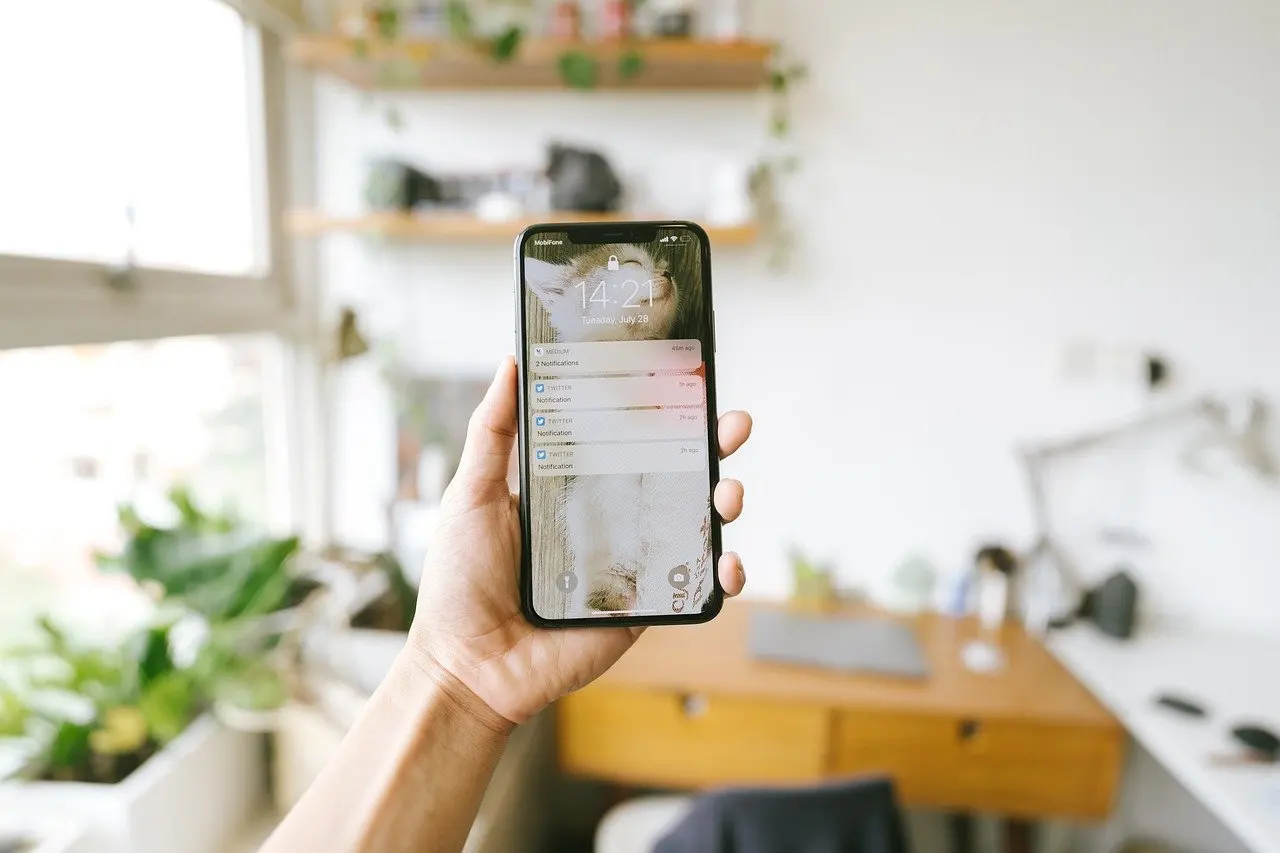
Notifications also deserve a periodic review. Alerts from your vault about a breach are worth acting on at once, while a stack of low-value banners tempts you to dismiss everything, including the one that matters. Keep alerts switched on for security and account activity, and switch off the rest.
Backing up what you cannot replace
A backup protects the things a password vault does not: photos, documents and device settings. Decide what you could not recreate, then keep a copy somewhere other than the device itself.
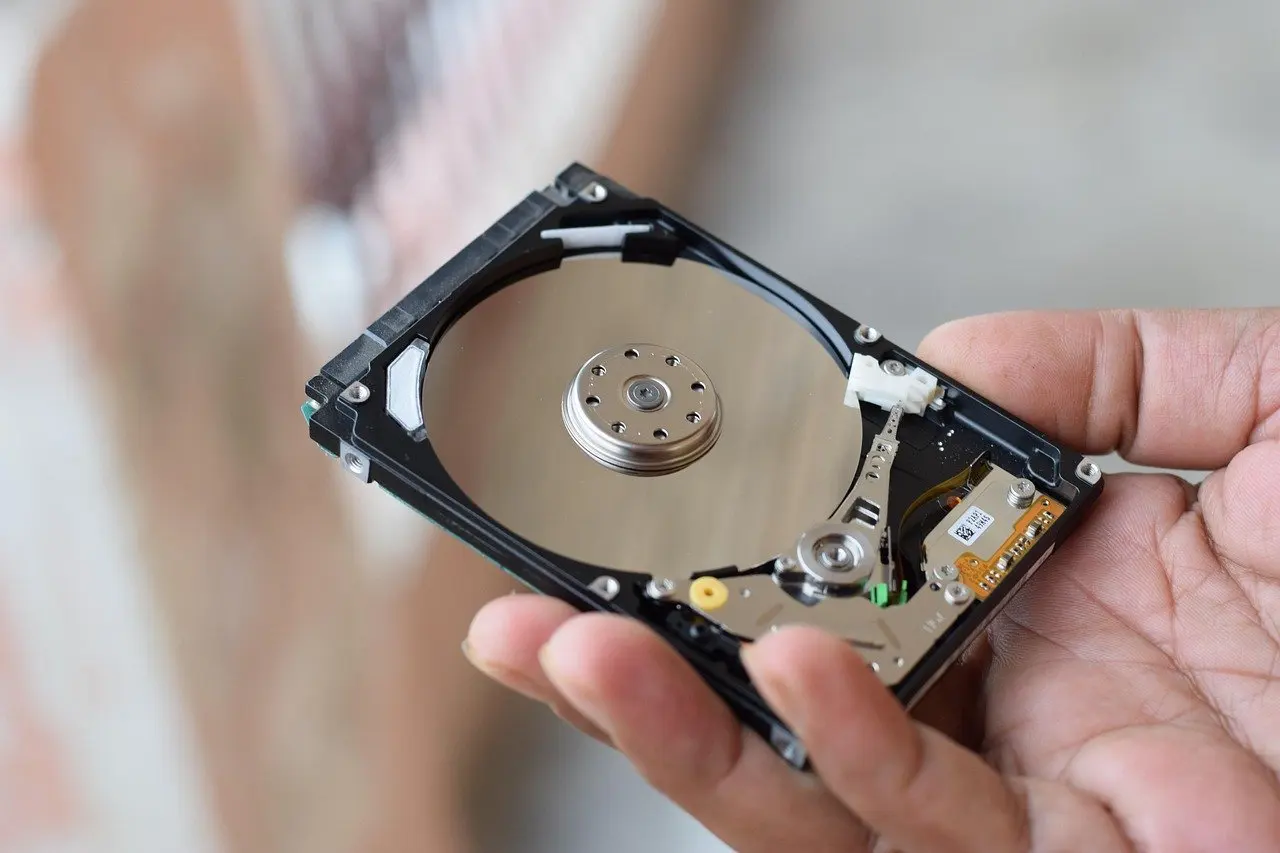
An external drive gives you a copy you control physically. It suits large files and anyone who prefers not to depend on a service, but it must be kept somewhere safe and reconnected to stay current.
Cloud storage trades control for convenience. Copies live away from your home and can sync across devices, so it suits documents and photos you want available on a phone and a laptop. The guide to the best cloud storage services compares the options. Many people use both: a drive for bulk archives and a cloud folder for everyday files.

Protect the backup account as carefully as the vault. Give it a unique generated password stored in the manager and switch on its second factor, because a backup full of personal files is a target in its own right.
Privacy settings, browsers and blockers
Privacy settings decide how much each app and website can see. Start with the permissions on your phone: review which apps can reach location, contacts, camera and microphone, and remove access that an app does not need to do its job. Be especially sceptical of permissions that have nothing to do with what the app does.
The browser is the next layer, since it handles most of your sign-ins and your vault extension. The guide to the best privacy browser options compares what each one offers, and the guide to the best ad blocker tools covers the extension side. Whichever you choose, install only the extensions you will use, and install them from the browser’s official store.
Families have an extra decision. Parental controls manage what children can open and when, and the guide to the best parental control app choices compares them. Set these up with the child where possible, so the rules are understood rather than merely imposed.
Creative and everyday tools worth choosing carefully
Beyond security and organization, most households need a handful of tools for specific jobs. Choose each for the task it solves, and prefer a free option when it covers what you actually do.
- Photos. Casual edits such as cropping and brightness rarely need a paid suite. The guide to the best free photo editing app choices suits people who want quick fixes before sharing.
- Video. Editing is heavier than photo work, and the guide to the best free video editing software helps you judge whether a free editor can handle your projects before you commit time to learning it.
- Screen capture. A recorder is useful for tutorials and support requests, and the guide to the best screen recorder tools compares them. Remember that recordings can capture saved logins and personal details, so check the screen before sharing.
- Documents. Forms and contracts often arrive as PDFs. The guide to the best pdf editor options is the place to start when you need to sign or annotate.
- Money. A budgeting app connects to sensitive accounts, so give it a unique password from your vault. The guide to the best budgeting app choices compares them.
- Learning. Language study works best as a short daily habit, and the guide to the best language learning apps helps match an app to your goal.
Every one of these accounts is another login to protect. Saving each in your password manager, with a generated password, keeps a growing app collection from becoming a growing risk.
Decision summary
Use the table below to match your situation to a starting point. It condenses the choices above, and each row points to the feature worth confirming first.
| Your situation | Starting choice | Planning use |
|---|---|---|
| Want one set of logins on phone, laptop and tablet | Hosted vault with cross-device sync | Confirm sync, random generation and a browser extension before paying. |
| Comfortable running your own server | Open source manager with self-hosting | Gives control over where data lives; maintenance becomes your task. |
| Want to try before paying | Free tier | Fewer features but credentials stay secure; check your checklist against the free plan. |
| Travel often with devices | Manager with a travel feature, such as 1Password’s travel mode | Lets you hide chosen credential data while travelling. |
| Managing a small team | Plan with administrative management | An October 2021 example put 1Password business at $19.95 per month for up to 10 employees; confirm current pricing. |
The figures and features come from Halborn’s password manager guide and the U.S. Chamber of Commerce selection guide.
Frequently asked questions
How do I choose a password manager?
Decide between hosted and self-hosted first, then check encryption, cross-device sync, random password generation, a browser extension and breach alerts. Enable a second factor on the vault as soon as it is set up.
Are free apps safe?
Free password managers can be. The U.S. Chamber of Commerce says free versions offer fewer features than paid apps and still keep credentials secure, so compare the free tier against the features you need.
Which second factor is strongest?
Dogtown Media describes physical security keys and passkeys as the strongest, phishing-resistant options. Authenticator app codes and push approvals rank above text message codes.
How can I avoid a fake password manager site?
Halborn advises checking the URL closely and opening the manager’s site from a bookmark you saved yourself, rather than following links sent to you.