
The best tablet depends on who uses it: iPadOS and Android both suit general use and reading, while the best tablet for kids is the one whose parental controls match the child’s age and your household’s devices.
Picture one shared tablet that has to handle recipes, video calls and a child’s evening screen time. That job needs a different checklist from a commuter’s reading device. The steps below turn that checklist into a decision, and the broader how to choose wireless earbuds guide sits in the same everyday gadgets hub for readers building a wider kit.
Decision criteria before comparing models
Work through these steps in order, because each one narrows the field before price and styling come into play.
- Name the main job. General browsing, reading and children’s use pull in different directions. General use rewards a flexible platform, reading rewards a comfortable portrait-mode screen, and kids’ use rewards strong controls.
- Pick the platform the household already knows. iPadOS and Android run the two main parental-control systems covered below. Familiarity lowers setup effort, which matters most when a parent is configuring the tablet for a child.
- Test parental controls against the child’s age. The tools differ on age limits and on whether one device can hold several profiles. The kids section below explains how.
- Look up the maker’s published software update period for the exact model. Prefer the longer commitment. Parental tools also have software minimums, as Wirecutter’s kids tablet setup advice points out, so a tablet stuck on old software can lose access to them.
- Read the hardware list for ports and storage. The specs section below translates the labels that matter in daily use.
- Add accessories to the budget. A keyboard case or protective case changes the real cost and what the tablet can do.
iPadOS and Android side by side
The two platforms differ most in how they handle children. This table compares the parental-control details that are clearly documented, with a planning note for each.
| Criterion | iPadOS (Apple) | Android (Google) | Planning use |
|---|---|---|---|
| Parental control tool | Apple Screen Time | Google Family Link | Choose the tool before the tablet, since each is tied to its own platform. |
| Software minimum | iOS 12 or later | Android 7.0 or higher | Check this first on any hand-me-down or older tablet. |
| Profiles per device | One user per device | Family Link runs on certain Android and Chrome devices | Siblings sharing one Apple tablet cannot have separate recorded users. Confirm the Android model is supported. |
| Age coverage | Not tied to an age cut-off in the cited guidance | Full parental control until the child turns 13 | For teenagers, Android’s control loosens at 13, so plan the conversation about rules early. |
Figures come from Google’s Family Link page and Wirecutter’s kids tablet guide.
For a household with no children, none of these rows decides the purchase. Weigh the software update period, ports and accessories instead, and use the platform comparison only as a tie-breaker.
General and productivity use
For everyday browsing, video, email and light work, either platform is a sound base, and the deciding factors are update support and accessories rather than raw speed. A tablet that keeps receiving updates stays secure and compatible with apps for longer, so the maker’s published update period deserves more weight than a small difference in processor.
Anyone planning to type regularly should budget for a keyboard accessory. That changes the tablet from a media device into a light laptop substitute, and it is the clearest case where a tablet earns a place beside a desk setup.

Pair the tablet with audio that suits the room. Shared spaces and calls are easier with the right pair, and the best headphones guide covers over-ear options for longer sessions.
Best tablet for reading
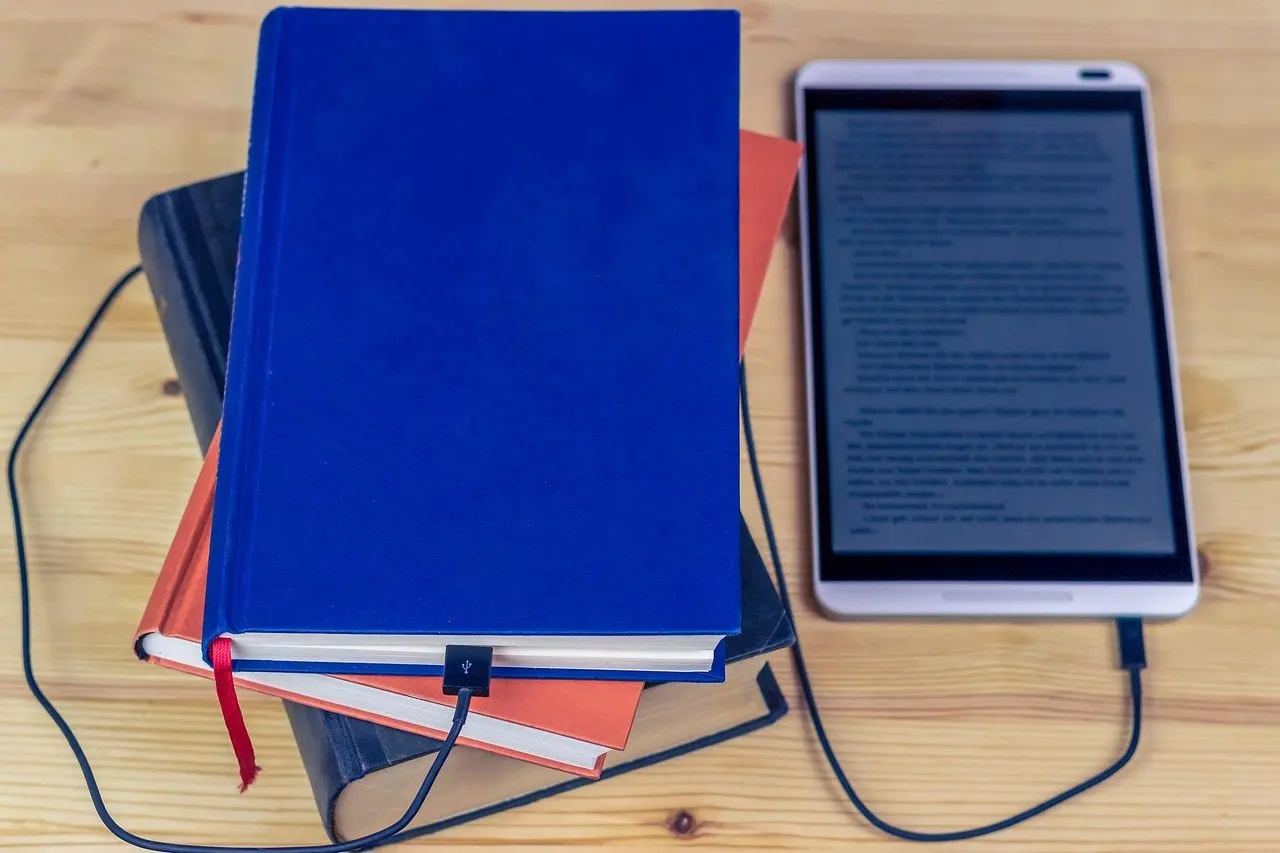
A tablet suits reading when the same device also needs to handle apps, video and browsing. Hold it in portrait orientation so a page of text fills the screen, and prefer a size that is comfortable in one hand for long sessions, because weight tires wrists faster than screen resolution disappoints eyes.

If reading is the only job, a tablet is not the only choice. A dedicated device is a different category with its own trade-offs, and the best e-reader comparison is the better place to check before spending on a full tablet.
Best tablet for kids
The best tablet for kids is the one whose parental controls fit the child’s age, the number of children sharing it and the platform the family already uses. Android with Family Link offers the more detailed controls, while an Apple tablet suits one child with a dedicated device. Neither makes supervision unnecessary.
What Family Link controls
According to Google, Family Link sets daily time limits, with School Time and Downtime schedules on the child’s devices. It also supports individual app time limits and unlimited time for educational or regularly used apps. Parents can block inappropriate sites, require approval for new apps and manage permissions, and see the child on a map as long as the child is carrying the device.
Where each platform falls short
- Age limit on Android. Wirecutter notes that Family Link gives parents full control only until a child turns 13, so it suits younger children best.
- One user on Apple. The same guide says Apple does not allow more than one user per device. Two siblings sharing a single Apple tablet therefore cannot be set up as separate users, and each child is better served by a separate device.
- Not fail-safe. Wirecutter also warns that parental controls are not a fail-safe, because kids can hack them and filters may miss content. Treat them as a support for conversation and supervision, not a replacement.
- Older tablets. Apple Screen Time needs iOS 12 or later and Family Link generally needs Android 7.0 or higher, so a very old hand-me-down may not qualify.
For a young child with their own device, Android with Family Link is the stronger fit on features. For a household that already uses Apple products and has one child per tablet, an Apple tablet with Screen Time is a reasonable choice. For a teenager, the age limit means controls matter less than agreed rules.
Tablet specs explained
Specs matter when they change what the tablet can do day to day. Ports decide which accessories connect, storage decides how many apps, books and downloaded videos fit, and the software update period decides how long the tablet stays secure and compatible.
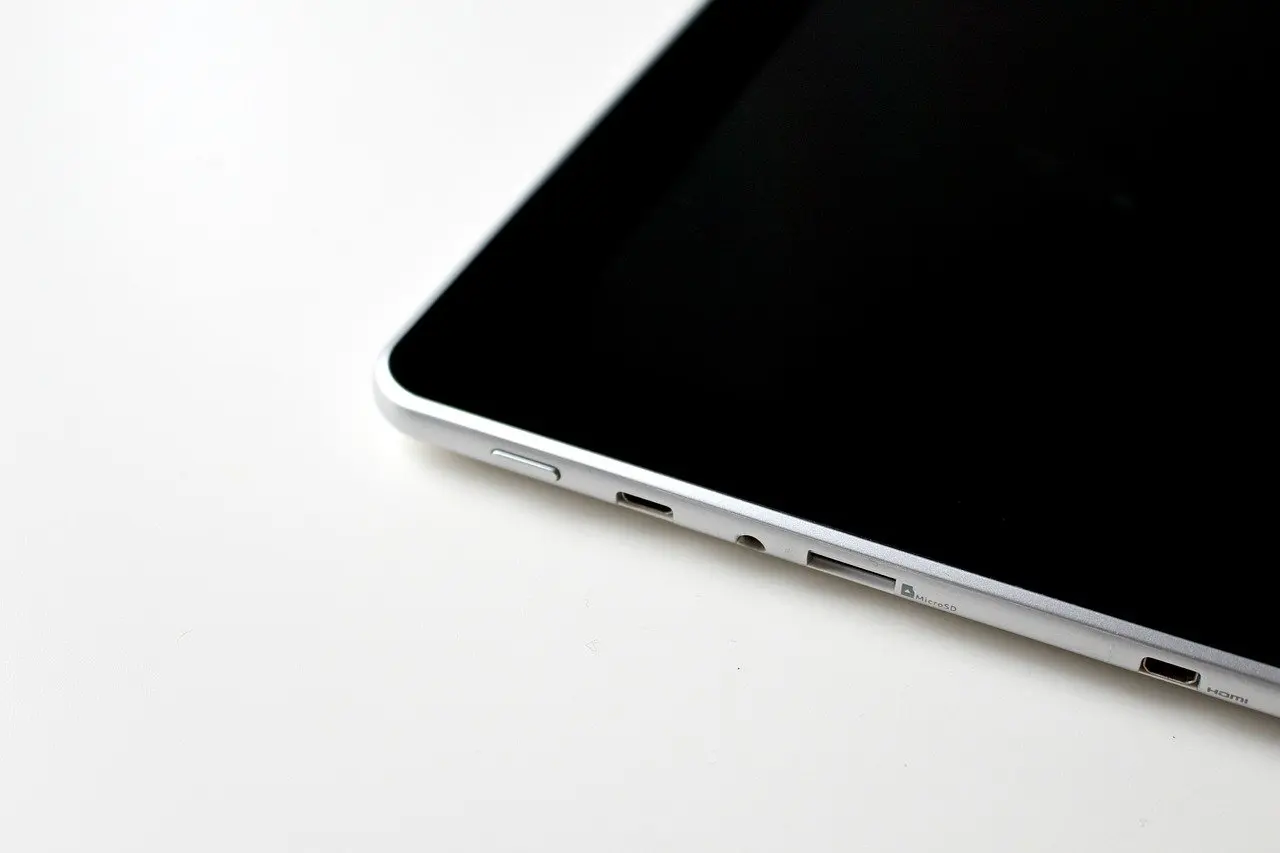
- Ports. Check for a headphone jack if wired audio matters, and for a charging port that works with chargers and accessories you already own.
- Card slot. A slot for expandable storage helps a child’s tablet fill with games and videos without forcing an early upgrade.
- Software update period. Find it on the maker’s update policy page for the exact model, and favour the longer commitment.
- Parental tool support. Confirm the model runs the parental tool you plan to use, since Family Link runs on certain Android and Chrome devices rather than all of them.
Add-on parental control services
Some families add a separate service on top of built-in controls. BestReviews lists Circle’s cheapest route as buying the Circle device for $69, which includes a three-month subscription, with a one-off Lifetime package at $349. Prefer the free trial first, and decide on a long commitment only if the built-in tools prove too limited.
Frequently asked questions
| Question | Answer |
|---|---|
| How much does Circle cost? | BestReviews gives $69 for the cheapest bundle with a three-month subscription and $349 for a one-time Lifetime package. A 14-day free trial is available to test the service first. |
| Can Family Link show where a child is? | Yes, Google says parents can locate children on one map, as long as the children are carrying their device. |
| Does Family Link work on every Android tablet? | No. Google says children and teens can run Family Link on certain Android and Chrome devices, so confirm support for the specific model before buying. |